If your customers are not receiving push notifications, the most common reason is that they have not allowed BookyWay to send notifications through their smartphone settings. It’s normal for customers to refuse consent when downloading the app to avoid unwanted advertising.
Things to keep in mind:
- System check: If even one person receives the notification, it means that BookyWay’s system is functioning correctly. The system either works for everyone or doesn’t work at all. Make sure notifications are enabled on your device and check that you have received the notification yourself after sending it.
- Notification delivery: BookyWay sends notifications to Android and iOS devices. From that moment on, the responsibility for actual delivery lies with the operating systems and not with BookyWay.
- Common reasons for non-receipt: Reasons why notifications might not be delivered include the user having notifications disabled, not being logged into BookyWay, or being out of network coverage.
How to check: After sending, a message will inform you how many users the notification has reached (e.g., “the notification has reached x users”).
From Report → Customer Export → Download, you can check, for each user, the date and time when the last push notification was delivered.
Since push notifications are sent asynchronously, always wait a few minutes before downloading the report.
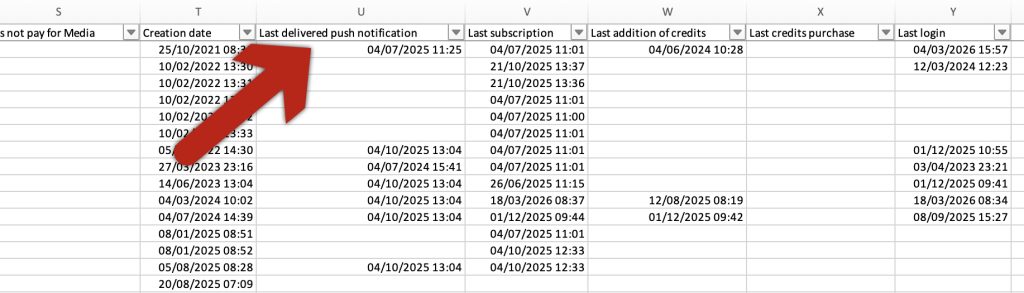
If after sending a notification, the relevant field remains empty, it’s likely that the user has either not accepted to receive notifications or has not installed the app.
Suggestion: If you notice that the number of notifications sent is significantly lower than the number of users, it might be helpful to inform your customers about the importance of activating notifications for BookyWay, ensuring that only relevant information will be sent.
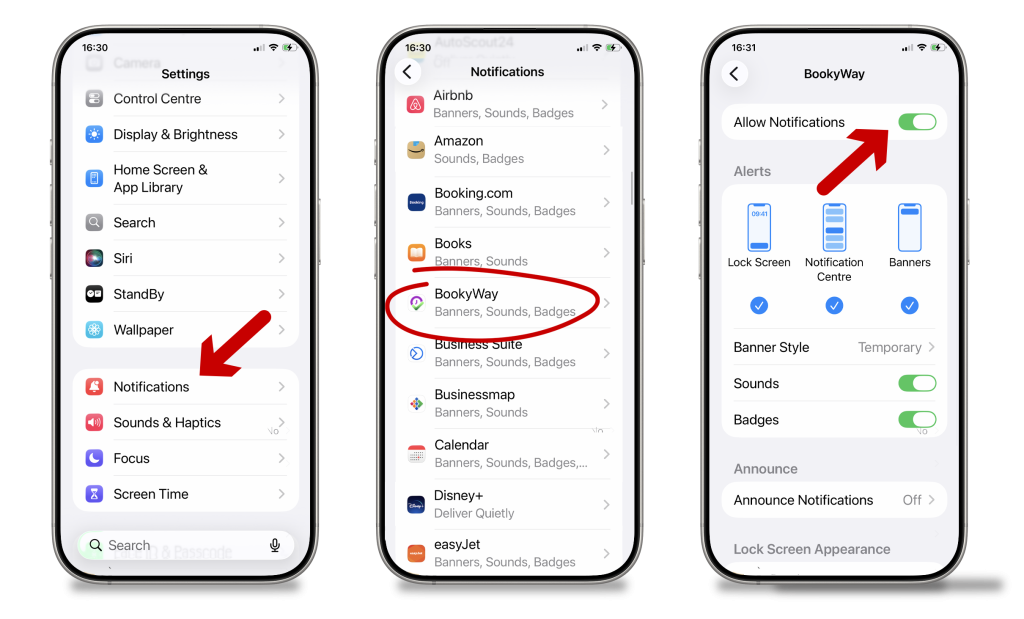
📱 How to enable push notifications on iPhone (iOS)
- Open Settings
- Scroll and tap Notifications
- Find and open the app (BookyWay)
- Enable Allow Notifications
- Make sure at least the following are enabled:
- Lock Screen
- Notification Center
- Banners
- (Recommended) Enable Sounds
💡 Important: if notifications are disabled here, the app will not be able to receive them under any circumstances.
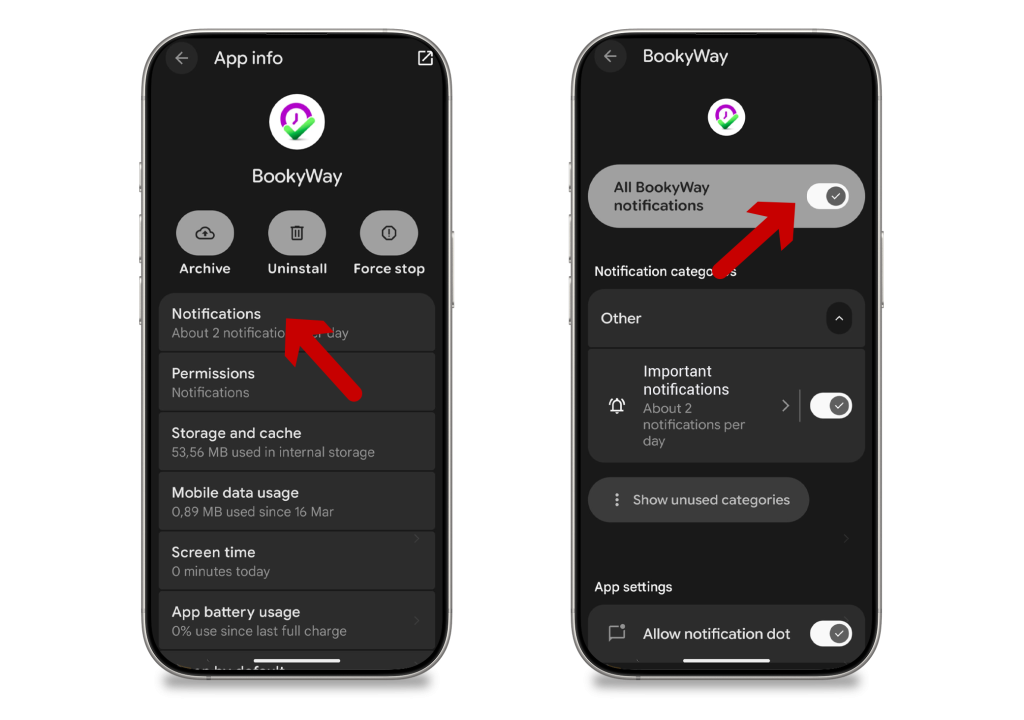
🤖 How to enable push notifications on Android
• Quick method (works on most devices)
- Press and hold the app icon (BookyWay)
- Tap App info (or ⓘ icon)
- Go to Notifications
- Enable all available options
- Make sure all notification categories are active
• Standard method – via Settings
- Open Settings
- Go to Apps (or Apps & notifications)
- Select the app
- Tap Notifications
- Enable all available options
CAUTION: We cannot guarantee the actual receipt of notifications, as they depend on services provided by iPhone and Android. A delivered notification does not necessarily mean it has been received, for various reasons, including devices being turned off or out of coverage.