What is bulk editing?
Bulk editing allows you to update multiple activities at the same time, avoiding editing them one by one.
It is useful, for example, to:
- change the title, credit value, price, visibility…
- update schedules or shared information
- delete multiple lessons from the schedule at once
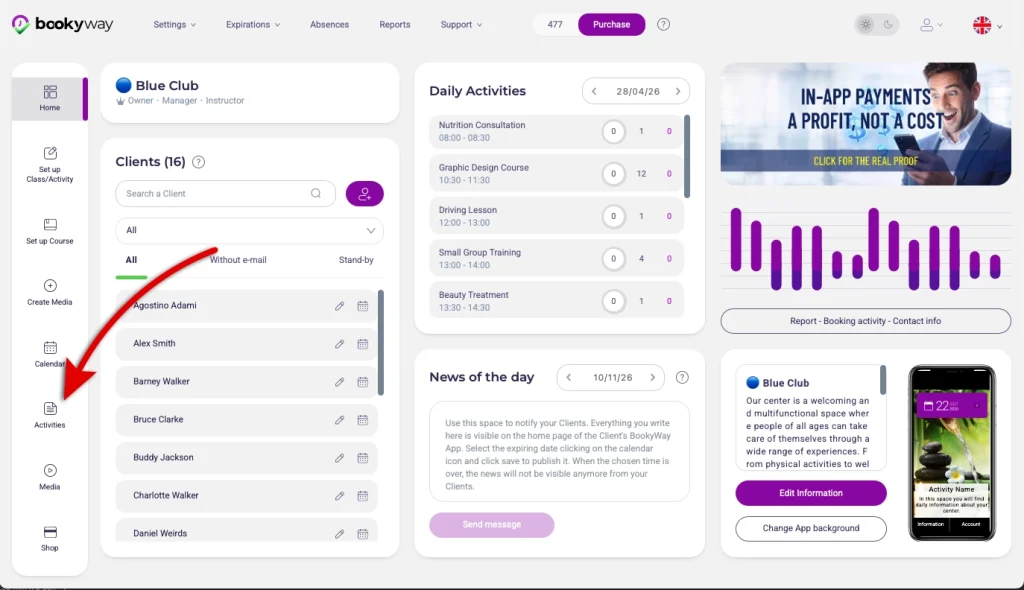
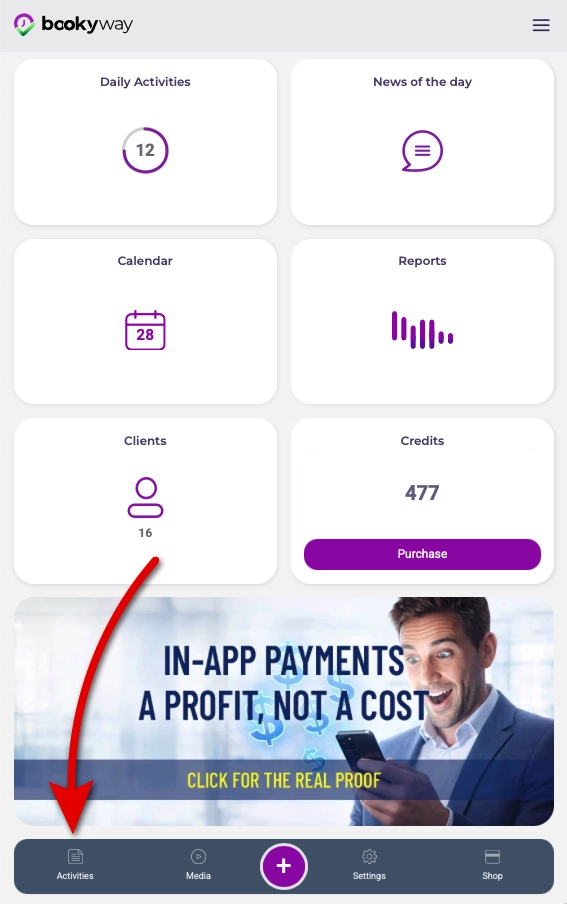
1. Access the activity list
Go to the Activity List menu
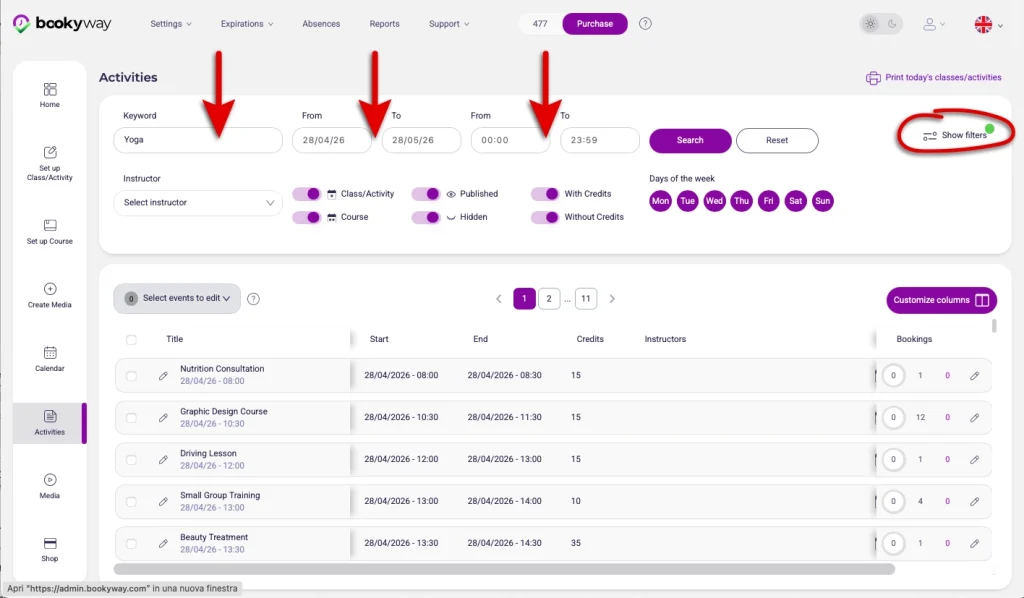
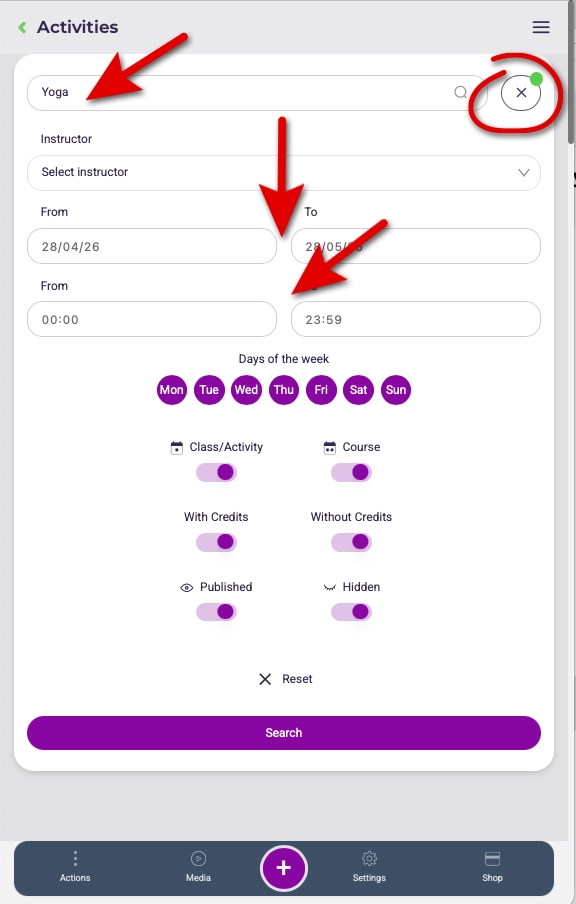
2. Filter activities
Use filters to select the activities you want to edit (e.g. name, date, time range…)
Then click Search
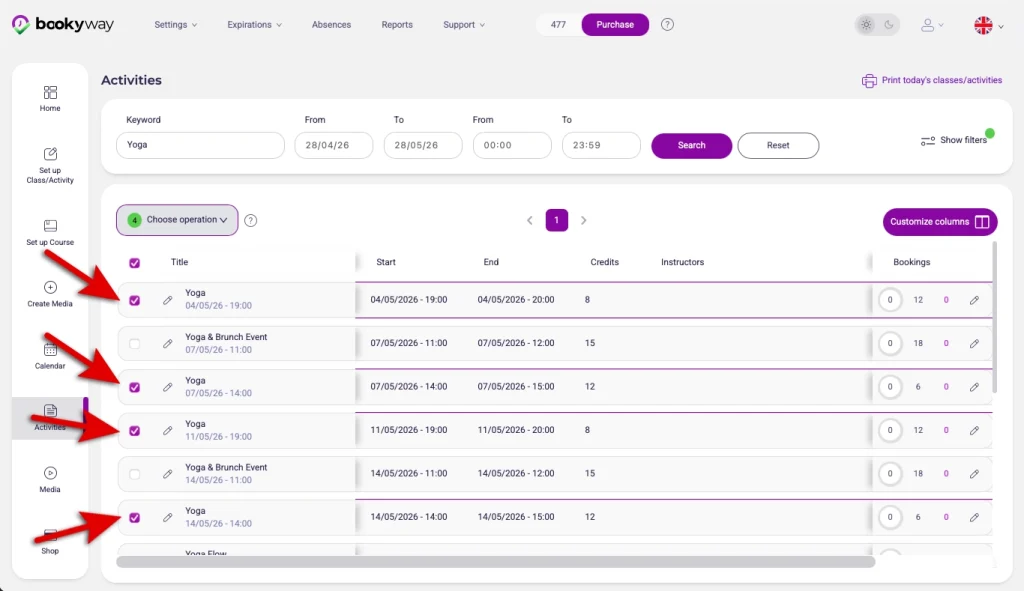
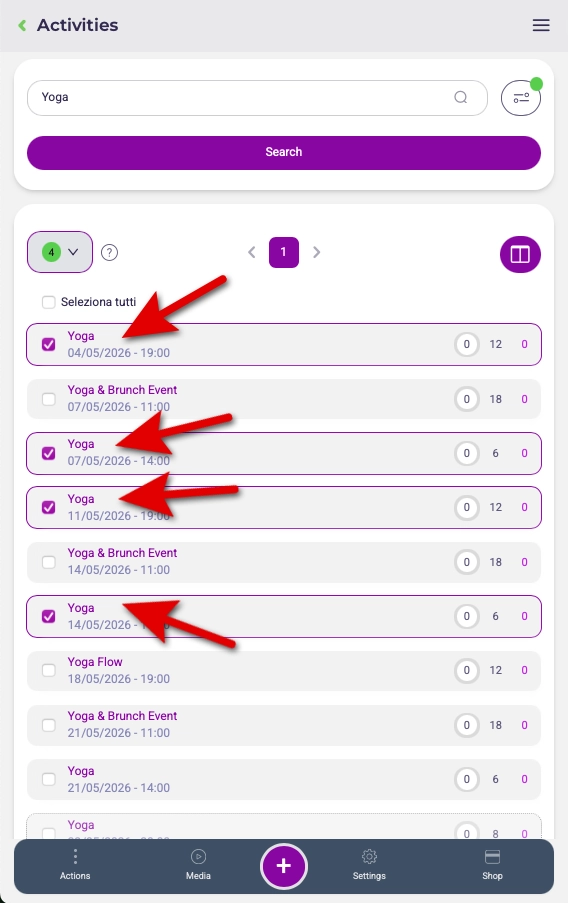
3. Select activities
Manually select the activities you want to modify.
Alternatively, use the checkbox at the top to select all activities shown in the list in one click.
4. Start bulk operations
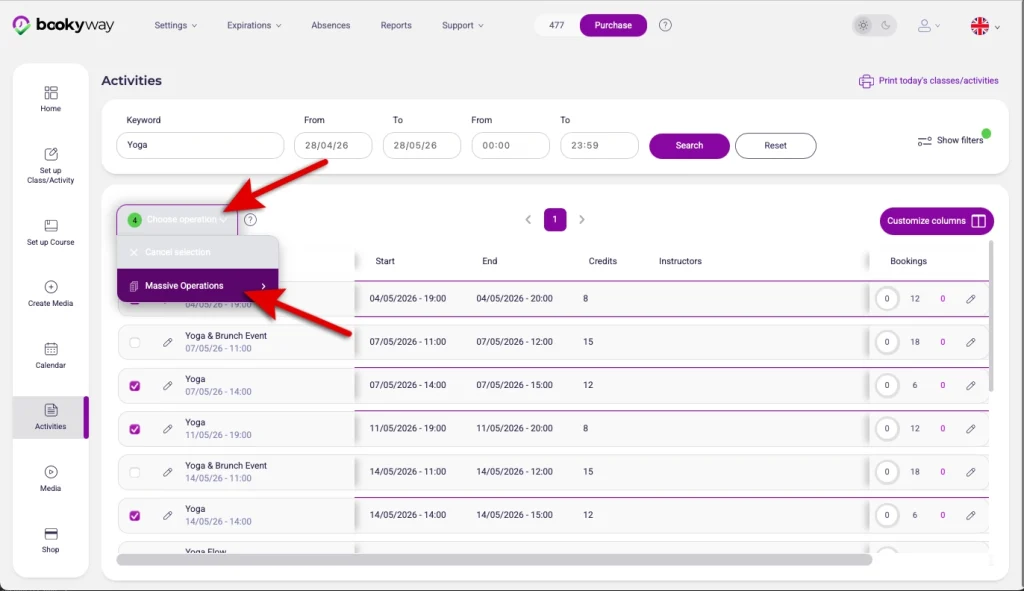
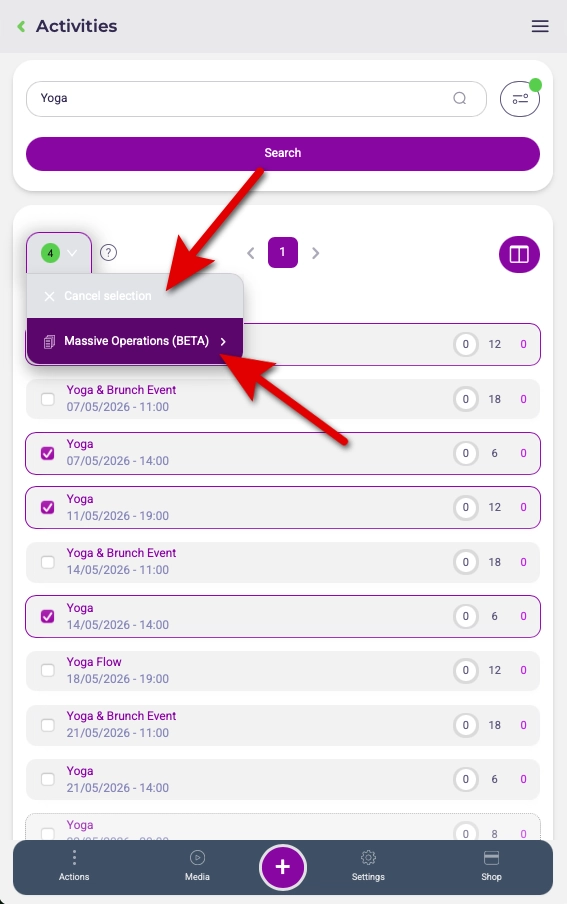
Click on Choose operation > Bulk operations
5. Review the activity list
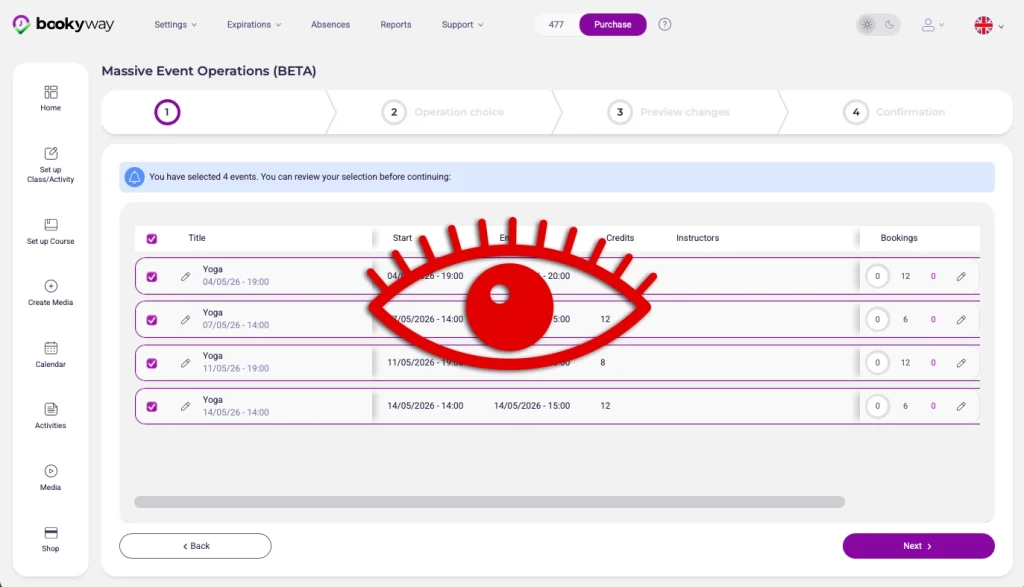
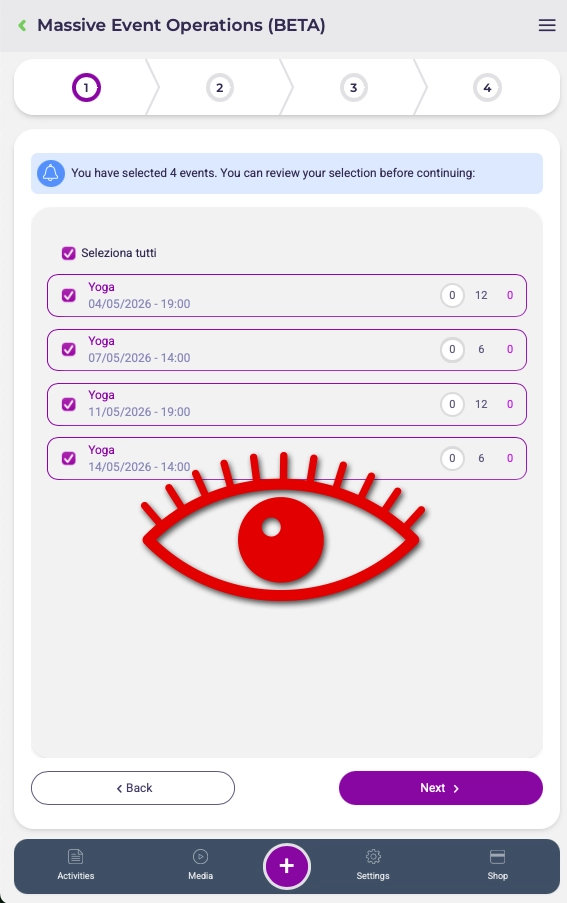
You will see the list of selected activities. You can still exclude some.
Then click Next
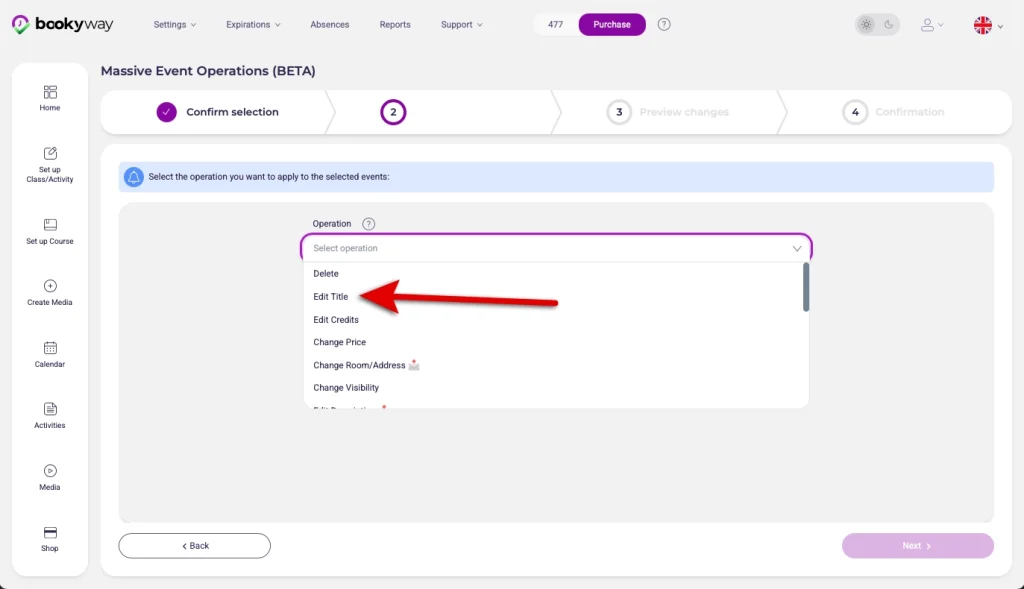
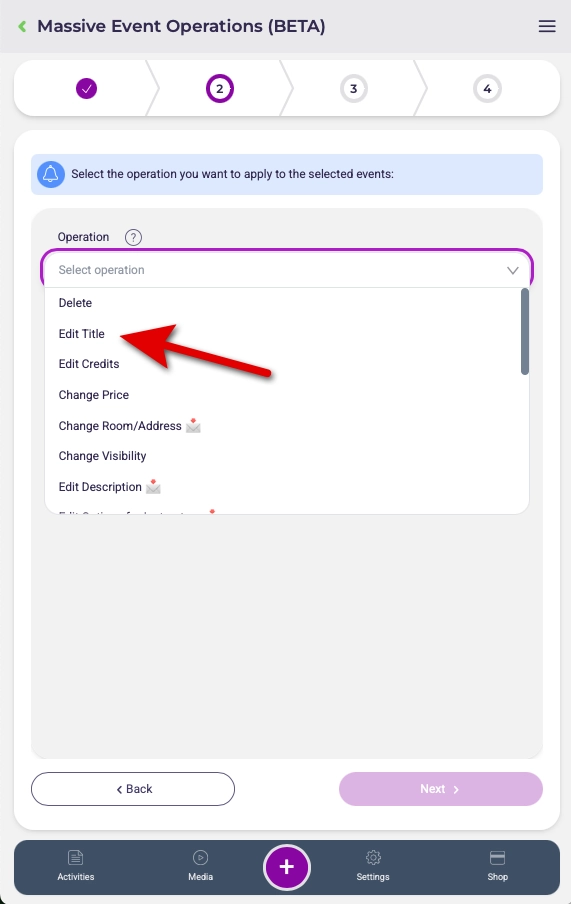
6. Choose the type of edit
Select the field you want to edit (e.g. title)
From here you can also choose to delete multiple lessons
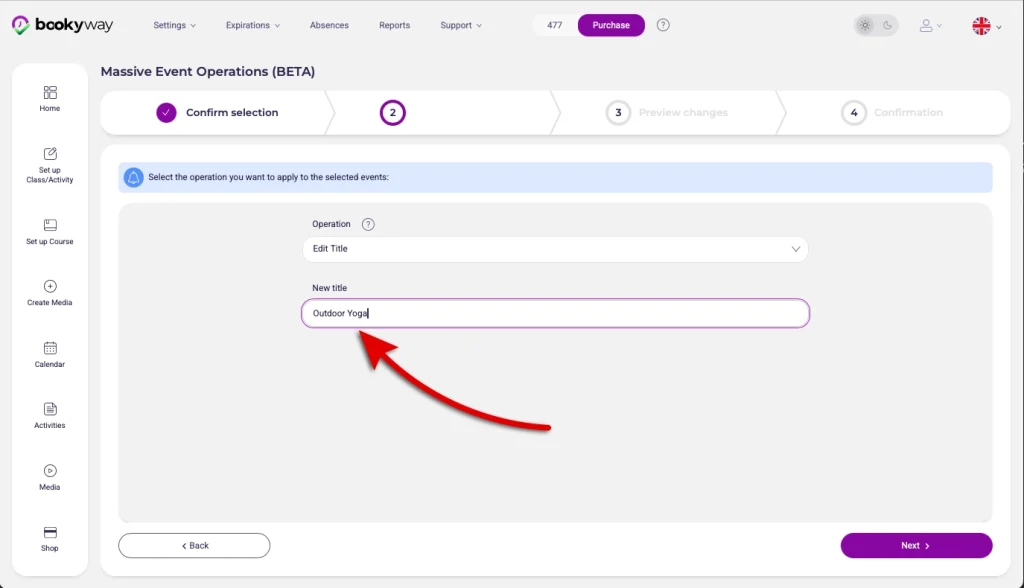
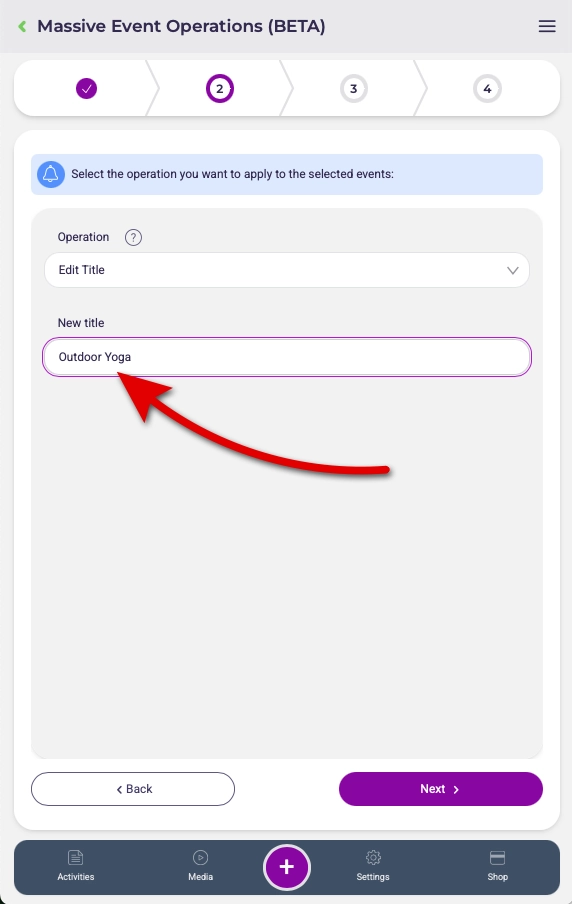
7. Enter the new value
Enter the new value (e.g. new title) and click Next
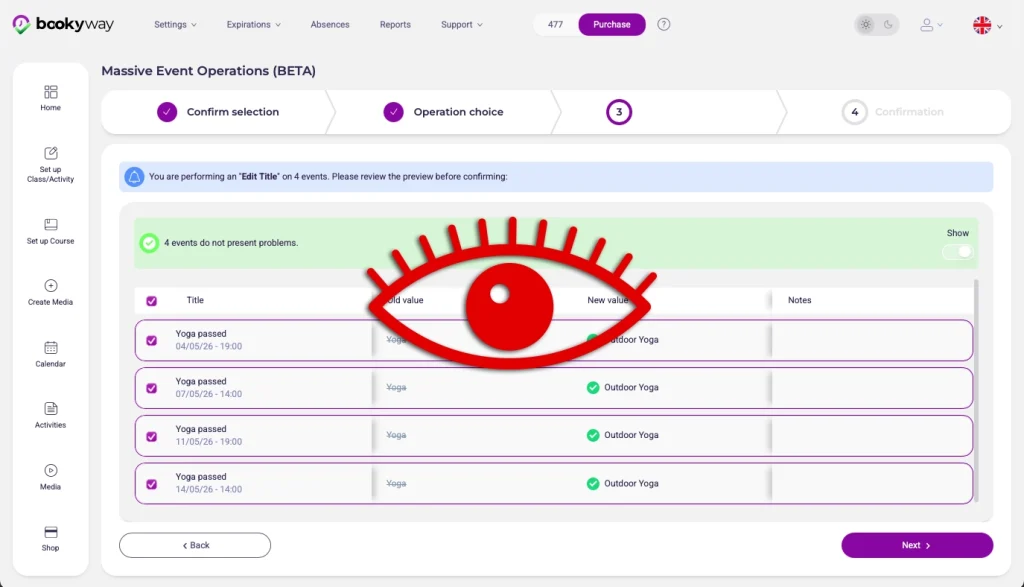
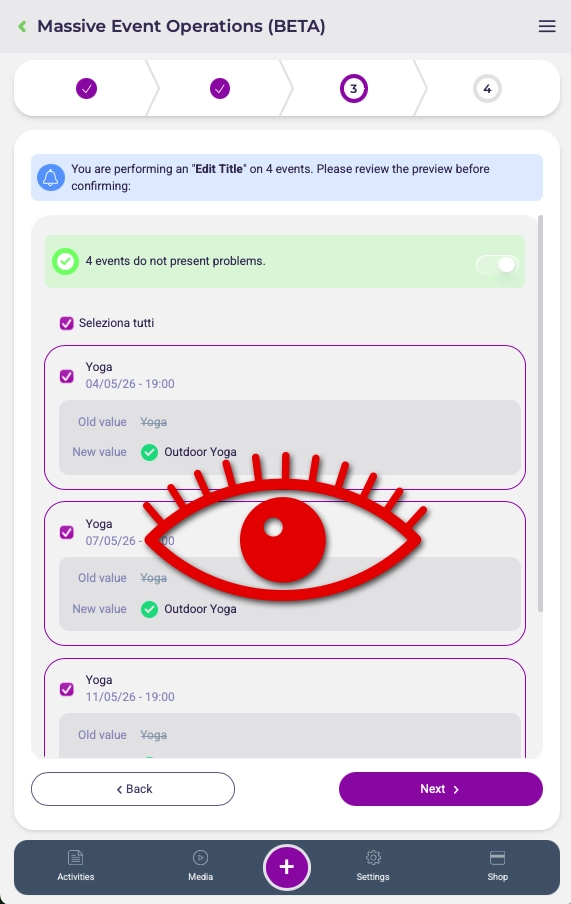
8. Review changes
The system will show:
- current value
- new value
👉 This step is essential to ensure everything is correct
9. Confirm the operation
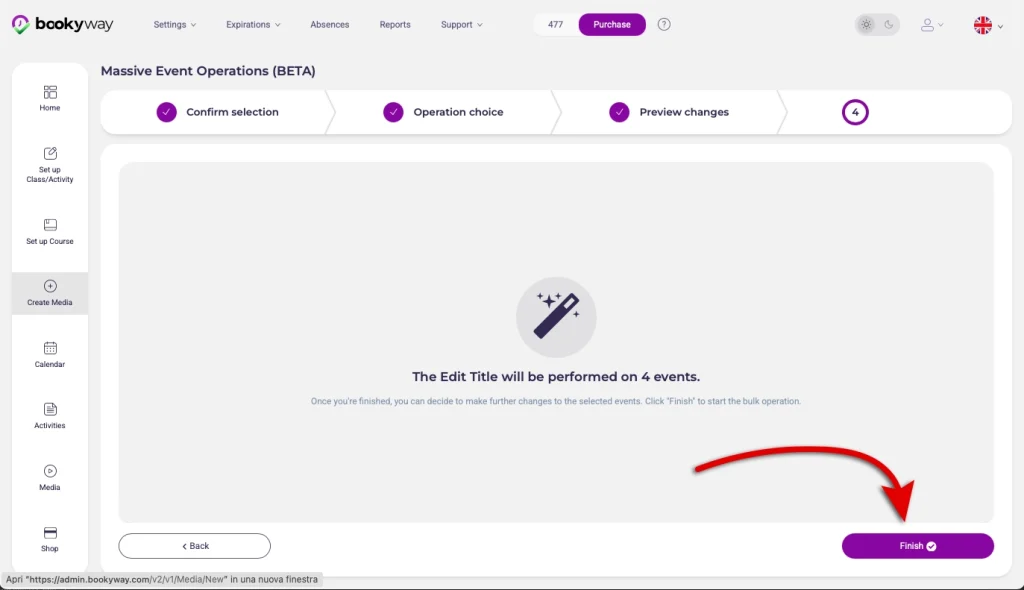
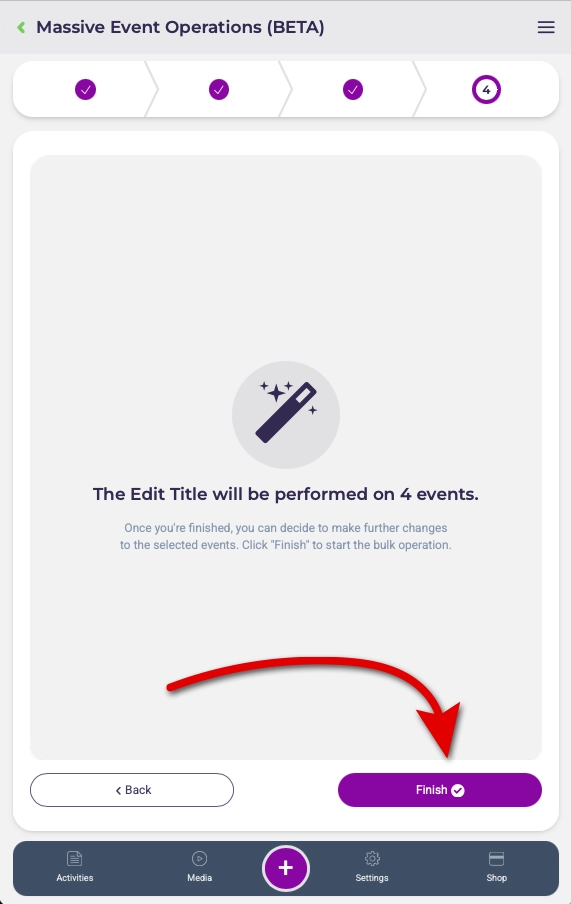
Click:
- Next
- Finish
The system will start applying the changes.
10. Wait for completion
After clicking Finish, the system will start processing the changes.
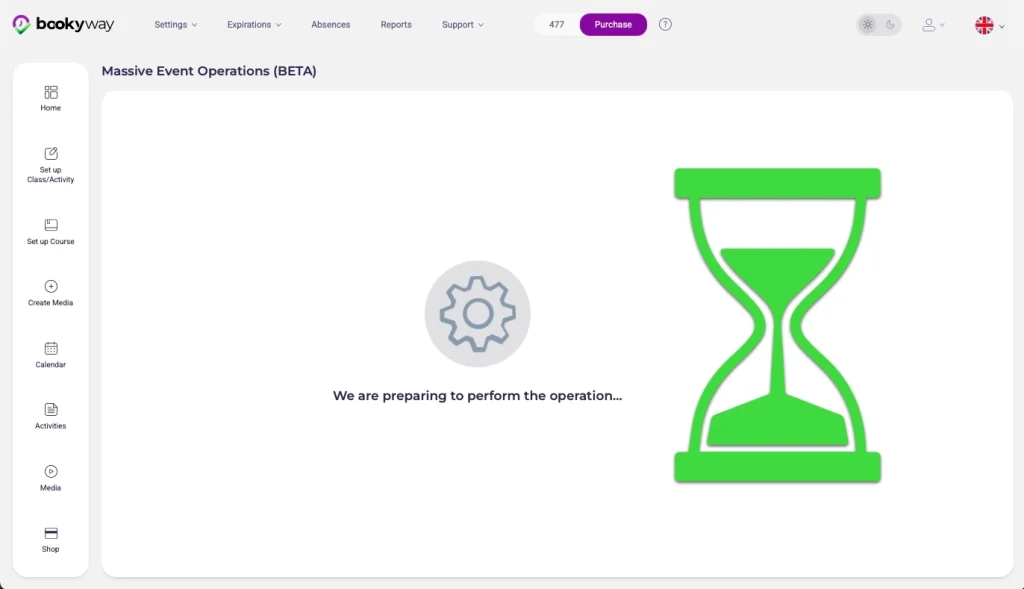
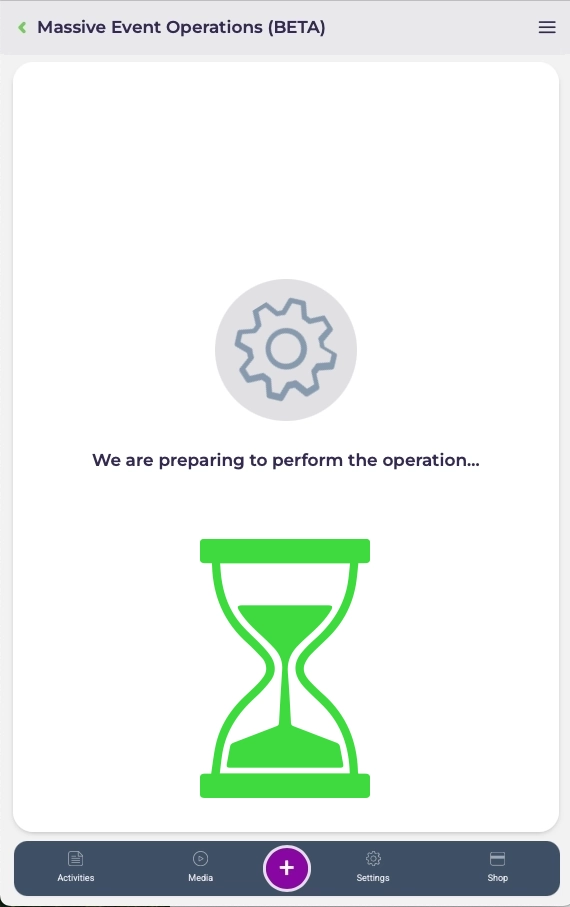
During this phase, you will see a processing screen.
⏳ Please wait: the time required depends on the number of selected activities.
👉 If many activities are involved, the operation may take longer.
It is important to wait without closing the page.
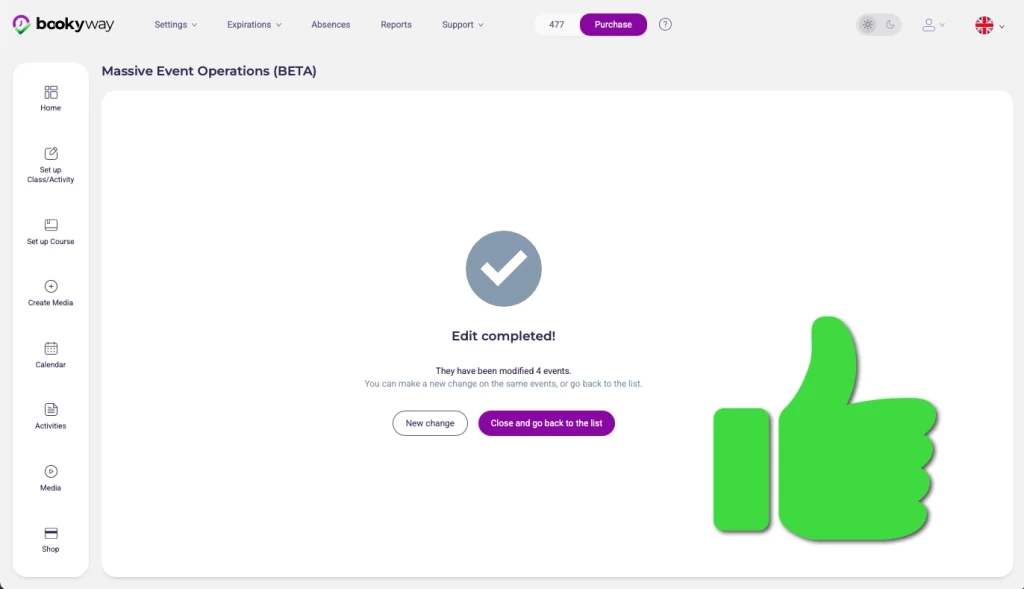
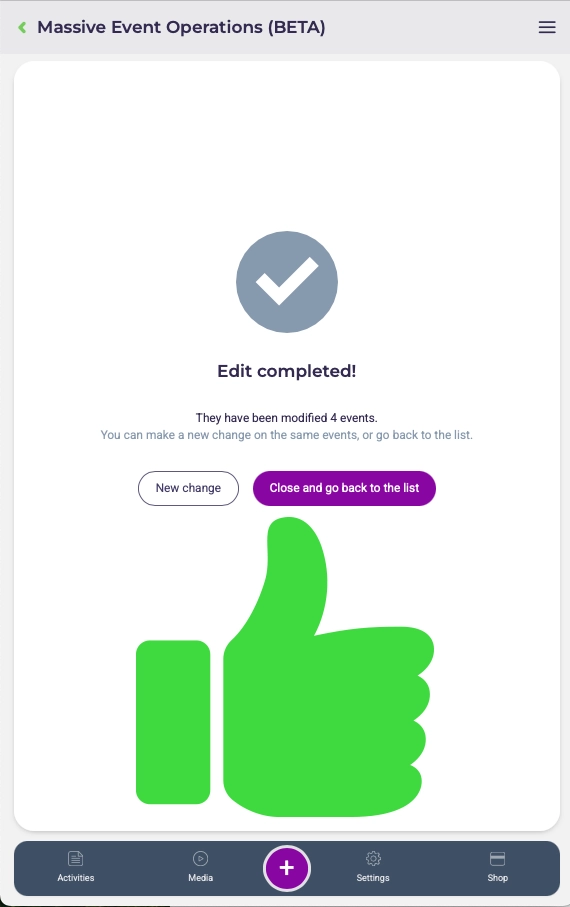
11. Operation completed
Once completed:
- you can finish
- or perform a new edit on the same selected group without repeating the selection
👉 This is particularly useful if you need to apply multiple changes (e.g. title, schedule, instructor, etc.) to the same set of activities.