When a client is unable to book an activity, the first step is to understand exactly what issue they are experiencing.
|1. The client cannot see the activities in the app
If the client cannot see the activities you have published, please refer to the dedicated FAQ:
👉 Why can’t my clients see the activities I’ve created?
|2. The client can see the activity but cannot book it
Always ask the client which message appears in the app when they try to book. This will help you identify the cause of the problem more easily.
Then check the following:
- Check the subscription expiration date
If the client uses the Subscription option, open their profile and check that the date entered in the Subscription expiration field is still valid.
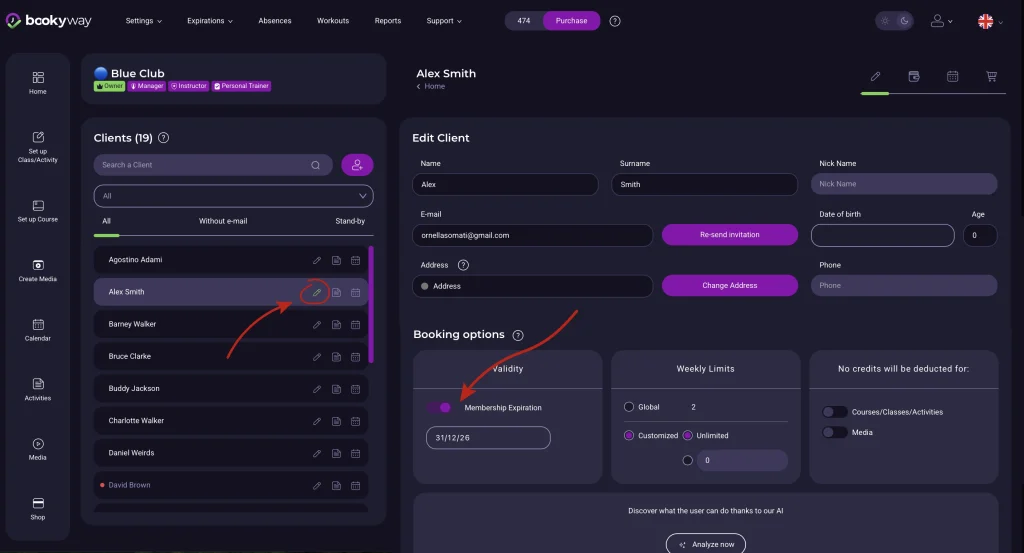
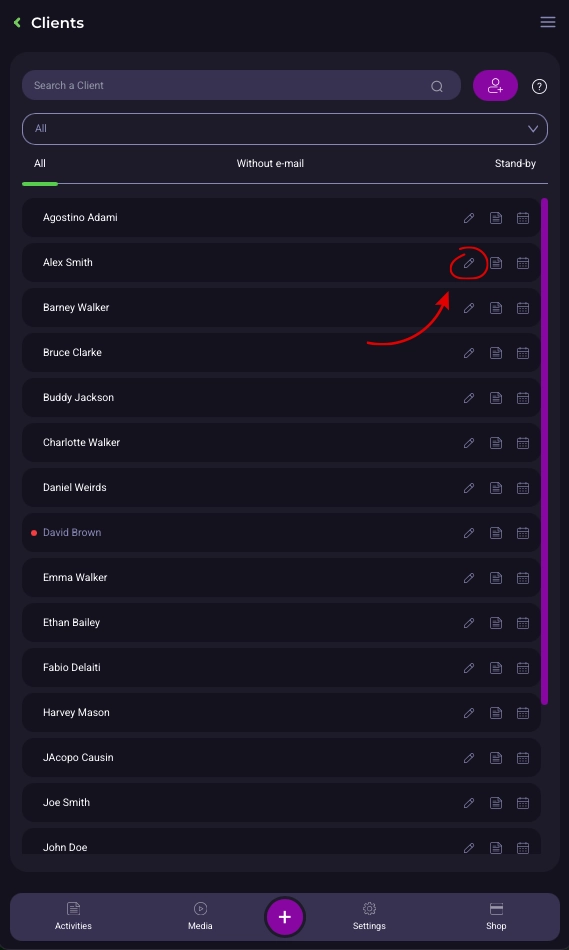
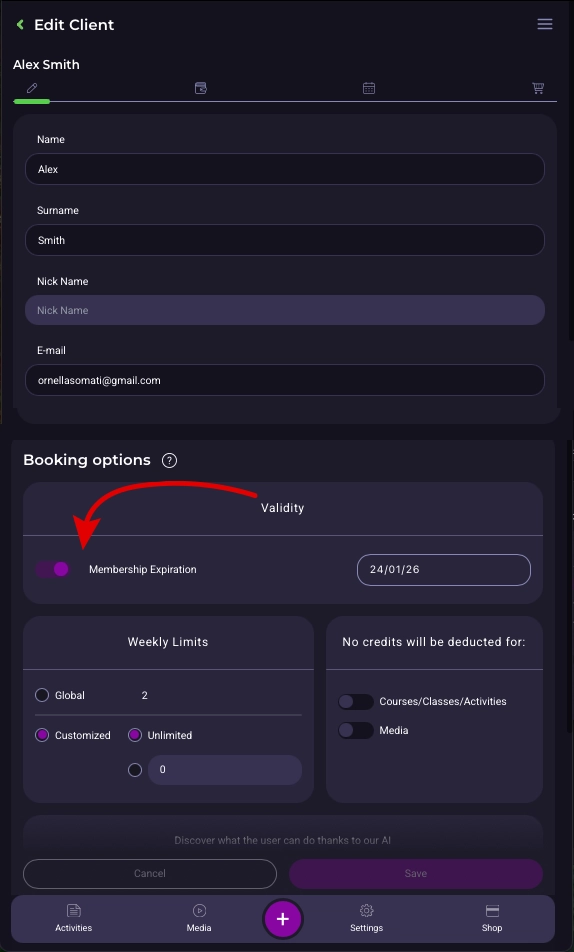
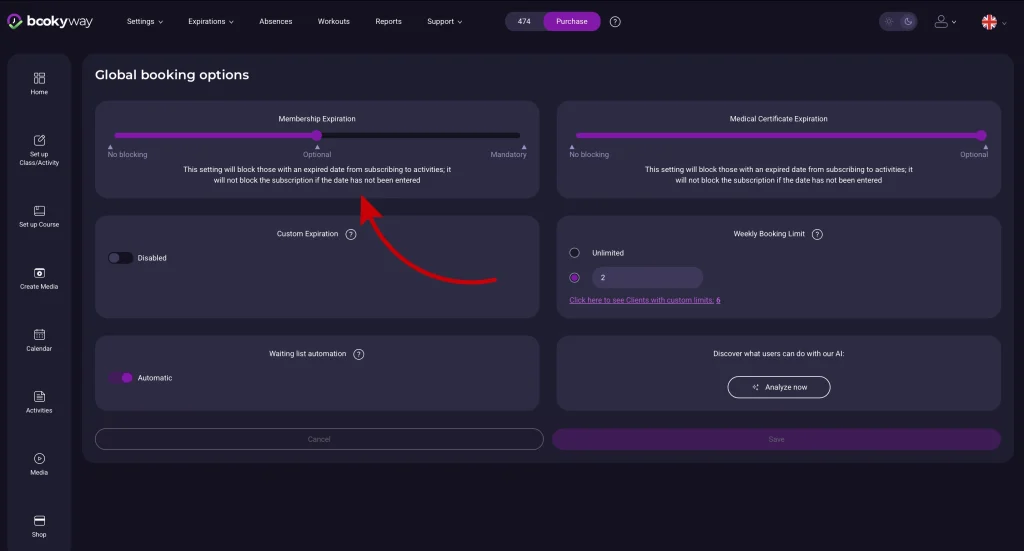
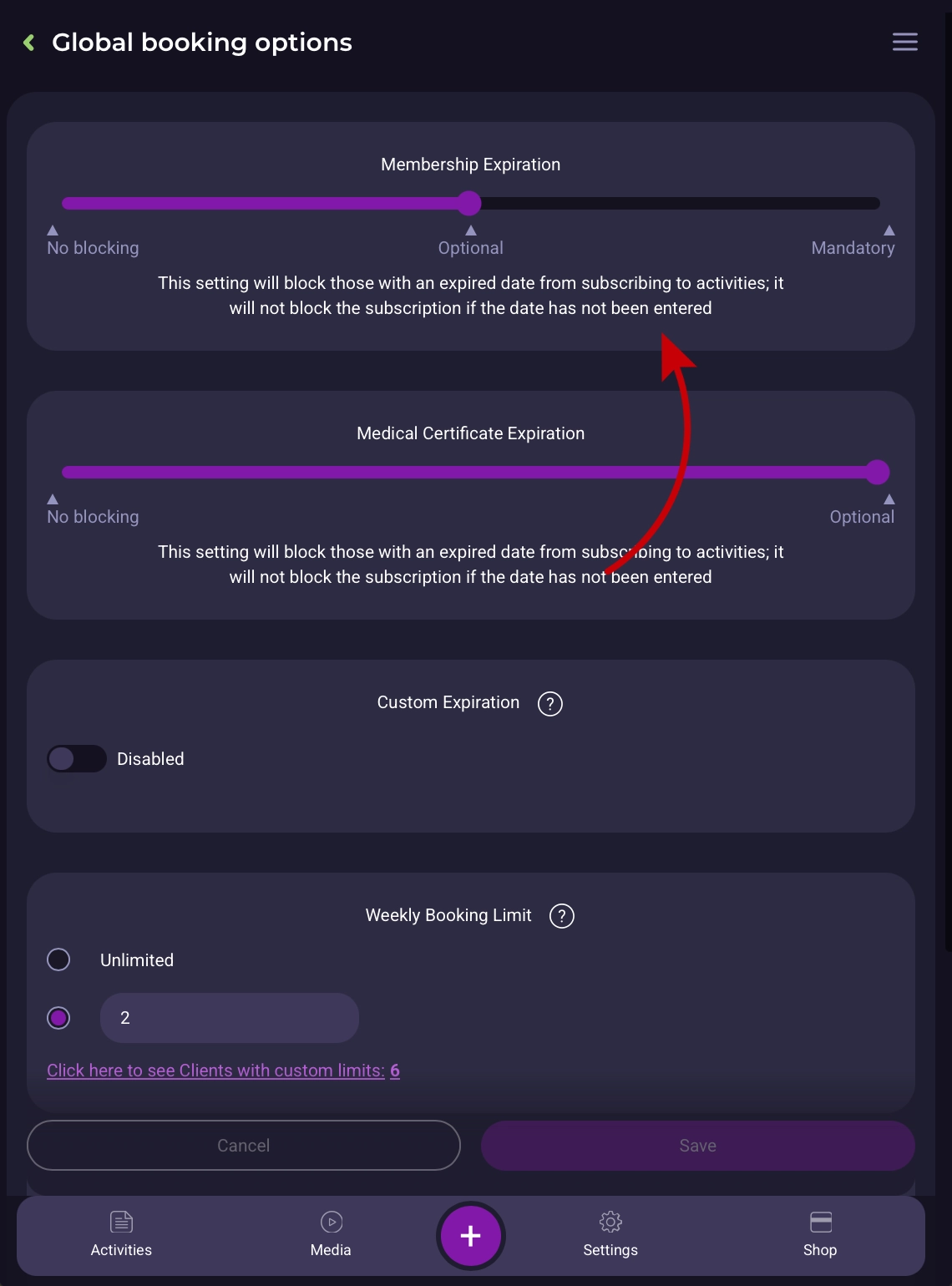
If the date has expired or has not been entered, the system may prevent the booking, depending on the settings configured under: Settings → Global Booking Options
Check how the system is configured to behave when a client’s subscription has expired or no expiration date has been entered.
- Check the available credits and their expiration date
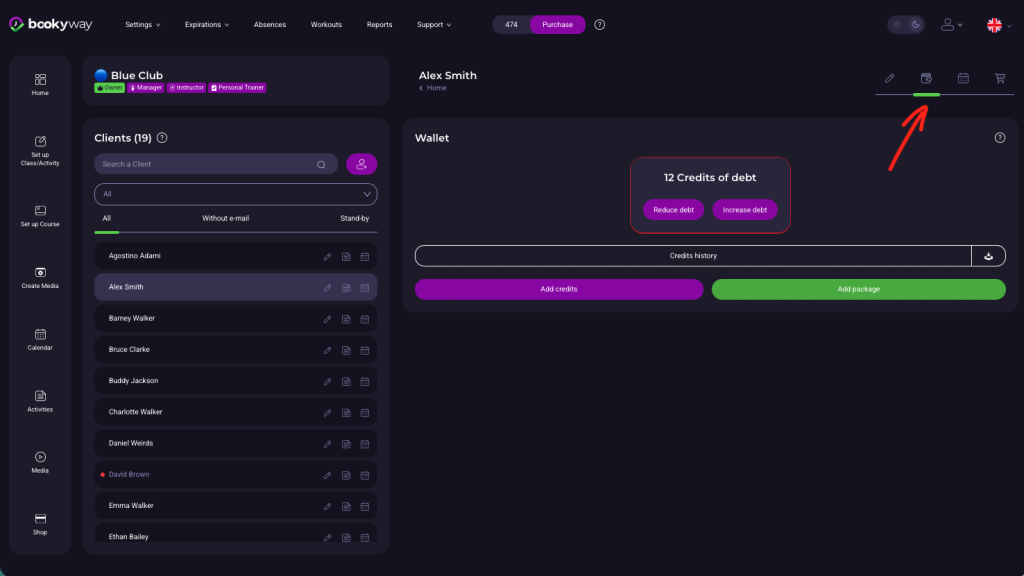
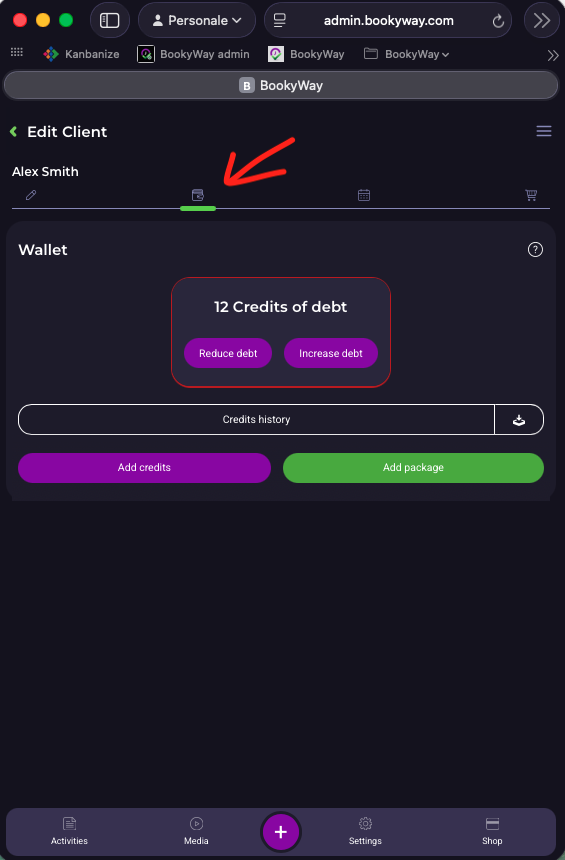
If the client uses Credits, open their profile, go to the Wallet section and check that:
- they have enough credits available;
- the credit expiration date includes the date of the activity they wish to book.
For example, if the credits expire on September 10, the client will not be able to use them to book an activity scheduled after that date.
⚠️ Important
With BookyWay, you can manage clients using:
- the Subscription option;
- Credit packages with an expiration date.
You can also use both options at the same time, managing some clients through subscriptions and others through credits.
In this case, remember to:
- always assign the appropriate credit value to each activity;
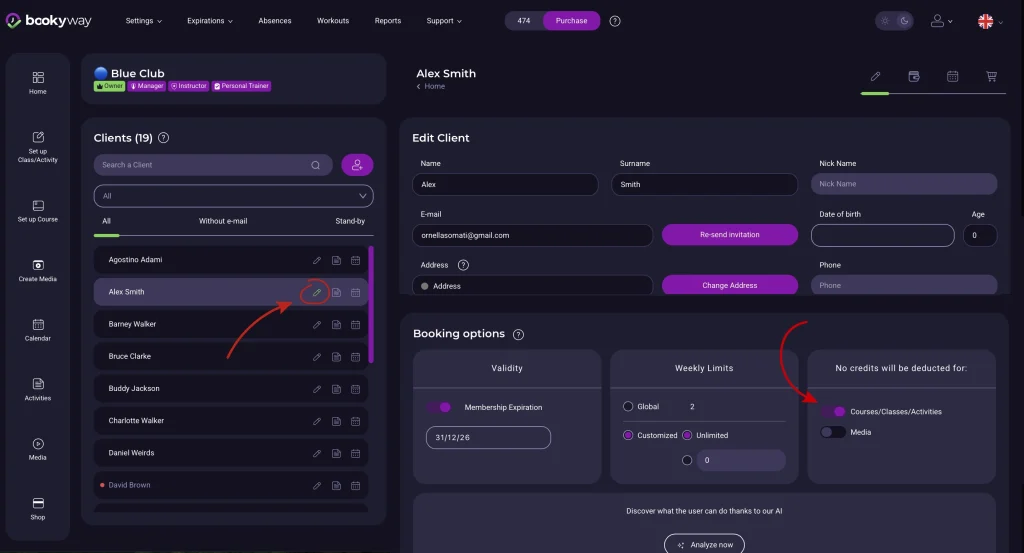
- enable the Credits will not be deducted for courses/classes/activities option in the profile of clients who use a subscription.
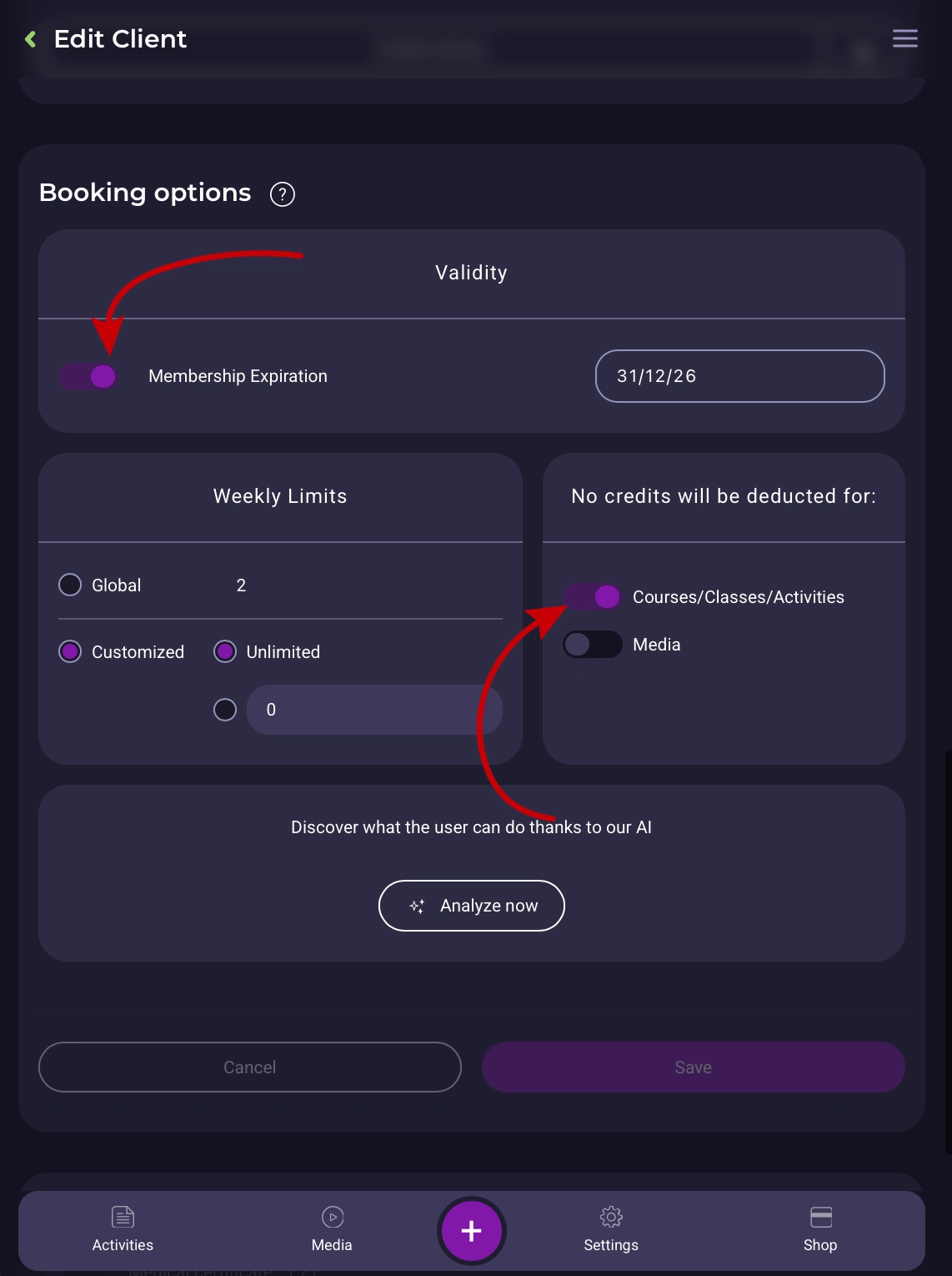
Finally, under Settings → Global Booking Options, set Subscription expiration to Optional.
This allows the system to correctly manage both clients with a subscription and clients who use credits only.
❌ What not to do
Do not assign a subscription expiration date to clients who use credits in order to prevent them from booking after a certain date.
For these clients, you should not enter a subscription expiration date. Instead, set the expiration date directly in the credit package. When the package expires, the remaining credits will automatically be reset to zero.
There may, however, be cases where you use the Subscription expiration field for another purpose, such as managing the expiration date of an annual membership or registration.
💡 Practical example
Let’s consider the following situation.
A client has:
- 10 credits expiring on June 30;
- a Subscription expiration date, used as the membership expiration date, set to May 31.
The client tries to book a class scheduled for June 10 that requires 1 credit.L’utente prova a prenotare una lezione del 10/06, che richiede 1 credito.
What happens?
The client still has 10 valid credits because the credit package does not expire until June 30.
However, the Subscription expiration date has already passed on May 31.
As a result, the booking is blocked.
The reason is not that the client does not have enough credits, but that they no longer have a valid subscription expiration date covering the date of the class.
In practice
Credits determine how many classes the client can still book.
The Subscription expiration date determines until when the client is authorized to make bookings at the center.
For this reason, even if credits are still available, a client whose subscription has expired will not be able to book classes scheduled after the subscription expiration date.
If the problem persists
If all expiration dates are correct and the client is still unable to book, also check that:
- the activity is still open for booking;
- places are still available;
- no booking restrictions apply, such as how far in advance or how late a booking can be made, the maximum number of bookings allowed, or similar limits;
- the client meets all the requirements set for that specific activity.
If the problem persists, contact BookyWay Support and provide the account ID, the client’s name and the activity concerned.